
How to Check CPU Temperature
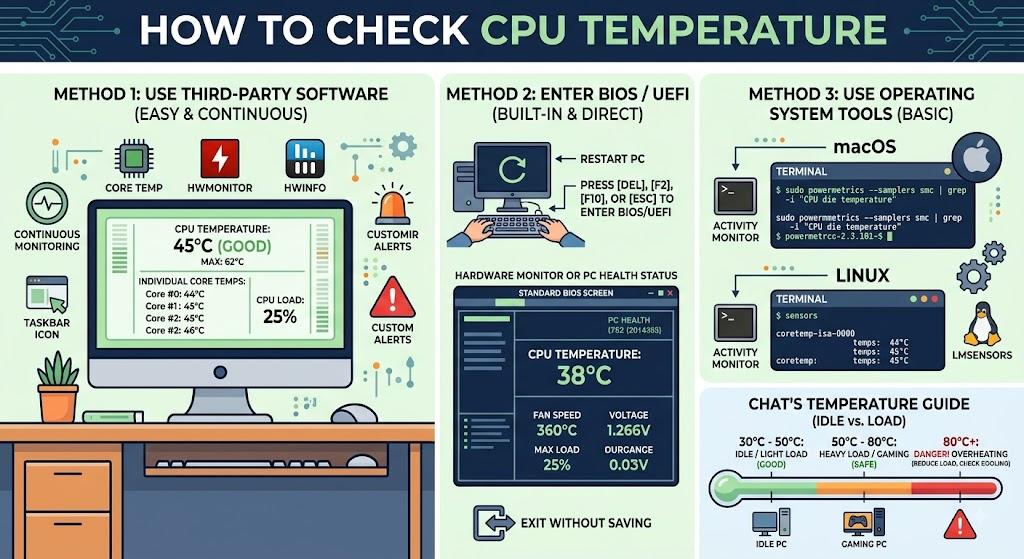
Monitoring your CPU temperature is an important part of keeping your computer healthy and performing reliably. A processor that becomes too hot can cause slowdowns, unexpected shutdowns, crashes, or reduced hardware lifespan. Whether you use a desktop for gaming or a laptop for everyday work, checking CPU temperature regularly can help you identify cooling problems before they become serious.
What Is a Normal CPU Temperature?
CPU temperature varies depending on the processor, workload, cooling system, and room temperature. When your computer is idle, the CPU may typically stay around 30°C to 50°C. During demanding tasks such as gaming, video editing, or running intensive applications, temperatures around 60°C to 85°C are common.
Temperatures consistently approaching or exceeding 90°C may indicate that your processor is running too hot. The maximum safe temperature varies by CPU model, so check your processor manufacturer's specifications for the exact limit.
How to Check CPU Temperature in Windows
Windows does not always provide a straightforward built-in CPU temperature reading. You can use a hardware-monitoring application to view the temperature.
One popular option is HWMonitor, which displays CPU temperatures along with other hardware information. After installing and opening the application, look for your processor section and check the temperature readings for individual CPU cores.
Other monitoring applications, such as Core Temp and HWiNFO, can also provide detailed temperature information. Depending on the software, you may see current, minimum, and maximum temperatures.
Check CPU Temperature in BIOS or UEFI
You can also check your processor temperature through your computer's BIOS or UEFI firmware.
Restart your computer and press the appropriate BIOS or UEFI key during startup. The key varies by manufacturer but is commonly Delete, F2, F10, or Esc. Once inside the firmware settings, look for a section such as Hardware Monitor, PC Health, System Status, or CPU Monitoring.
The displayed temperature represents the CPU's current temperature before Windows and other applications are fully loaded, so it may be lower than temperatures recorded during gaming or heavy workloads.
How to Check CPU Temperature on a Laptop
Laptop users can use hardware-monitoring applications to check processor temperature. Tools such as HWiNFO, Core Temp, or the manufacturer's own system utility may show CPU temperature.
For a more useful assessment, check the temperature while performing normal activities and again during demanding workloads. A laptop CPU may run warmer than a desktop processor because of its compact cooling system.
What to Do If Your CPU Is Too Hot
If your processor consistently reaches unusually high temperatures, first make sure the computer's air vents are not blocked. Dust buildup can restrict airflow and reduce cooling performance. Cleaning the vents and fans can help improve airflow.
You should also check whether the CPU fan is working correctly. On desktops, replacing old thermal paste and improving case airflow may help lower temperatures. Laptop users should keep the device on a hard, flat surface rather than a bed or soft surface that can block ventilation.
Reducing unnecessary background applications and checking CPU usage can also help. If high temperatures continue even after cleaning and improving airflow, professional inspection may be necessary.
Final Thoughts
Checking CPU temperature is a simple way to monitor your computer's health and identify potential cooling problems. Use a reliable monitoring tool to check temperatures during idle and demanding workloads, and compare the readings with the recommended limits for your specific processor. Regular monitoring can help prevent overheating, maintain performance, and extend the useful life of your computer.

 English
 Arabic
 French
 Spanish
 Deutsch
 Turkish
 Dutch
Dutch
 Italiano
 Russian
 Romaian
 Portuguese (Brazil)
 Greek
Greek