What Happens When Laptop Thermal Management Stops Working Properly?
Introduction
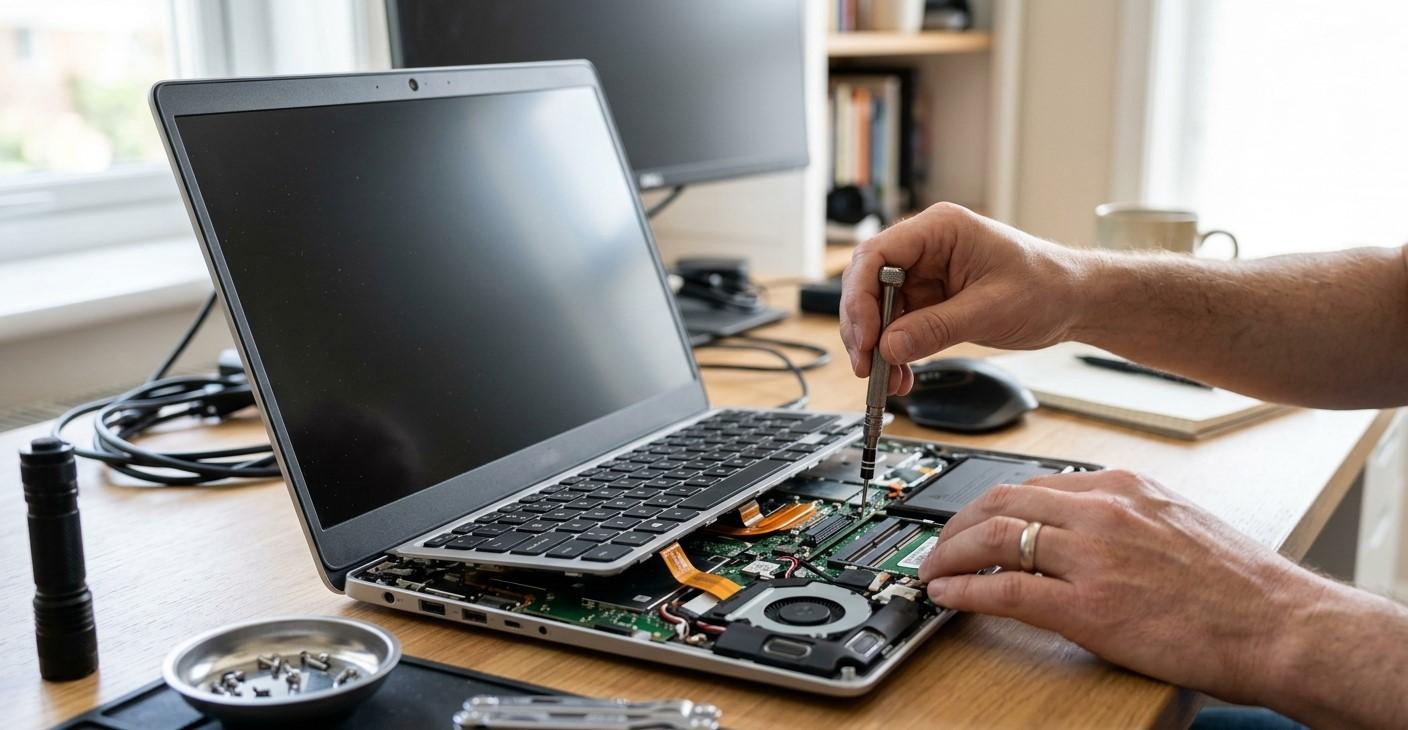
A laptop's thermal management system plays a vital role in maintaining safe operating temperatures. Modern laptops generate heat whenever the processor, graphics hardware, storage, and other components are working. Fans, heat sinks, thermal paste, ventilation openings, and temperature sensors work together to move this heat away from sensitive components.
When thermal management stops working properly, the effects can range from reduced performance to unexpected shutdowns and long-term hardware damage. A laptop may initially seem fine, but repeated overheating can place unnecessary stress on internal components. Understanding the warning signs can help users address cooling problems before they become more serious.
iPC Repair Houston can help diagnose overheating and cooling-system problems, including fan issues, blocked airflow, and thermal management failures. If physical damage has also affected the display, professional laptop screen repair Houston may be necessary as part of a broader hardware inspection.
What Is Laptop Thermal Management?
Thermal management refers to the systems and components responsible for controlling heat inside a laptop.
These may include:
- Cooling fans
- Heat pipes
- Heat sinks
- Thermal paste
- Ventilation openings
- Temperature sensors
- Processor-based thermal controls
The purpose of these components is to transfer heat away from processors and other hardware and release it through the laptop's ventilation system.
When one or more parts stop functioning correctly, internal temperatures can rise beyond normal operating levels.
1. The Laptop May Become Extremely Hot
One of the most obvious signs of thermal-management problems is excessive heat.
Some warmth is normal, especially during demanding activities. However, unusually hot surfaces, particularly around the keyboard, underside, or exhaust area, can indicate that the cooling system is struggling.
Excessive heat may be caused by:
- Dust buildup
- Blocked vents
- Failing fans
- Poor thermal contact
- Aging thermal paste
- Heavy workloads
- Poor ventilation
A consistently hot laptop should be inspected rather than used indefinitely under the same conditions.
2. Performance Can Drop Suddenly
Modern processors are designed to protect themselves from excessive temperatures. When temperatures become too high, the system may automatically reduce processing speed.
This behavior is often called thermal throttling.
Users may notice:
- Applications becoming slower
- Games experiencing performance drops
- Video rendering taking longer
- Delayed multitasking
- Sluggish system response
If a laptop performs normally when first started but becomes noticeably slower after several minutes of intensive use, overheating may be one possible cause.
3. Fans May Run Constantly
A healthy cooling system adjusts fan speed based on temperature and workload. If the fan constantly runs at high speed during simple tasks, the laptop may be struggling to remove heat.
This can happen because of:
- Dust-covered cooling components
- Blocked vents
- Background processes
- Failing thermal material
- Poor heat transfer
- A malfunctioning fan
Constant high-speed fan operation should not automatically be blamed on the fan itself. The entire thermal system should be evaluated.
4. Unusual Fan Sounds May Develop
A damaged cooling fan may produce clicking, rattling, grinding, or buzzing sounds.
These sounds can indicate:
- Worn bearings
- Damaged fan blades
- Dust accumulation
- Loose components
- Fan motor problems
If unusual sounds are accompanied by rising temperatures, the fan should be inspected promptly.
Continuing to use a laptop with a failing fan may increase thermal stress on internal components.
5. Unexpected Shutdowns Can Occur
When a laptop becomes dangerously hot, its protective systems may shut it down automatically.
This can prevent immediate thermal damage, but repeated shutdowns are a warning that something is wrong.
Unexpected shutdowns during gaming, video editing, rendering, or other demanding workloads may indicate insufficient cooling.
However, shutdowns can also result from battery, power, memory, or motherboard problems. Professional diagnostics can help distinguish between these possibilities.
6. Thermal Paste Can Affect Heat Transfer
Thermal paste helps transfer heat from components such as processors to their heat sinks.
Over time, thermal paste can lose effectiveness. If the thermal interface becomes less efficient, heat may not transfer properly to the cooling system.
This can contribute to higher operating temperatures, especially when combined with dust or inadequate airflow.
Thermal paste replacement should be performed carefully because improper application can reduce cooling performance instead of improving it.
7. Blocked Ventilation Makes Cooling Less Effective
Laptop ventilation openings allow cool air to enter and warm air to escape. Blocking these openings can significantly reduce airflow.
Using a laptop on beds, blankets, couches, or other soft surfaces can restrict ventilation.
For better airflow, use the laptop on a hard, stable surface and keep the ventilation areas clear.
8. Dust Can Build Up Inside the Cooling System
Dust accumulation is one of the most common causes of reduced cooling efficiency.
Dust can collect around:
- Fans
- Heat sinks
- Air vents
- Internal filters
- Exhaust channels
When airflow becomes restricted, the cooling fan may have to work harder while moving less air.
Regular internal cleaning can help maintain airflow and reduce unnecessary thermal stress.
9. Long-Term Overheating Can Affect Internal Components
Repeated exposure to excessive temperatures can place stress on multiple laptop components.
Potentially affected hardware can include:
- Processor
- Graphics hardware
- Motherboard
- Battery
- Storage components
- Internal connectors
Thermal problems do not always cause immediate permanent failure. Instead, repeated heat exposure can contribute to premature component wear and instability.
10. Display Problems May Appear Alongside Thermal Issues
The display itself is not usually the primary source of overheating, but thermal or motherboard problems can sometimes affect graphics-related functions.
Users may notice flickering, visual artifacts, black screens, or unstable display behavior alongside other hardware symptoms.
If a laptop has physical damage as well, the screen may have an independent problem.
For customers searching for laptop screen repair Houston, professional diagnosis can determine whether the display panel, cable, graphics hardware, or motherboard is responsible.
If you are looking for screen repair Houston TX after an accident, it is also useful to have the laptop's internal components inspected for additional damage.
How to Prevent Thermal Management Problems
Several simple practices can help maintain proper cooling:
- Keep ventilation openings unobstructed.
- Use the laptop on hard surfaces.
- Clean dust from the cooling system when necessary.
- Avoid excessive heat exposure.
- Do not ignore unusual fan noises.
- Monitor recurring overheating.
- Avoid placing the laptop in enclosed spaces while operating.
- Have cooling problems inspected early.
Good maintenance can help extend the useful life of both the cooling system and the components it protects.
When Professional Thermal Service Is Needed
Professional assistance is recommended when the laptop repeatedly overheats, shuts down, becomes unusually slow, or produces abnormal fan sounds.
A technician can inspect the fan, heat sink, thermal interface, vents, temperature behavior, and other components to identify the actual cause.
iPC Repair Houston can help diagnose thermal-management problems and determine whether the laptop needs cleaning, fan replacement, thermal maintenance, or another hardware repair.
Conclusion
When laptop thermal management stops working properly, the consequences can include excessive heat, loud or failing fans, performance throttling, unexpected shutdowns, and increased stress on internal components. Ignoring these symptoms can allow a relatively simple cooling problem to develop into a more expensive hardware issue.
Maintaining clear ventilation, keeping the cooling system clean, and addressing unusual temperatures or fan behavior early are important parts of laptop thermal maintenance. If display issues occur at the same time, laptop screen repair Houston or screen repair Houston TX services may be needed alongside a complete hardware inspection. With professional support from iPC Repair Houston, laptop owners can identify thermal problems early and protect their devices from unnecessary heat-related damage.


 English
 Arabic
 French
 Spanish
 Portuguese
 Deutsch
 Turkish
 Italiano
 Russian
 Romaian
 Portuguese (Brazil)
 Greek
Greek