
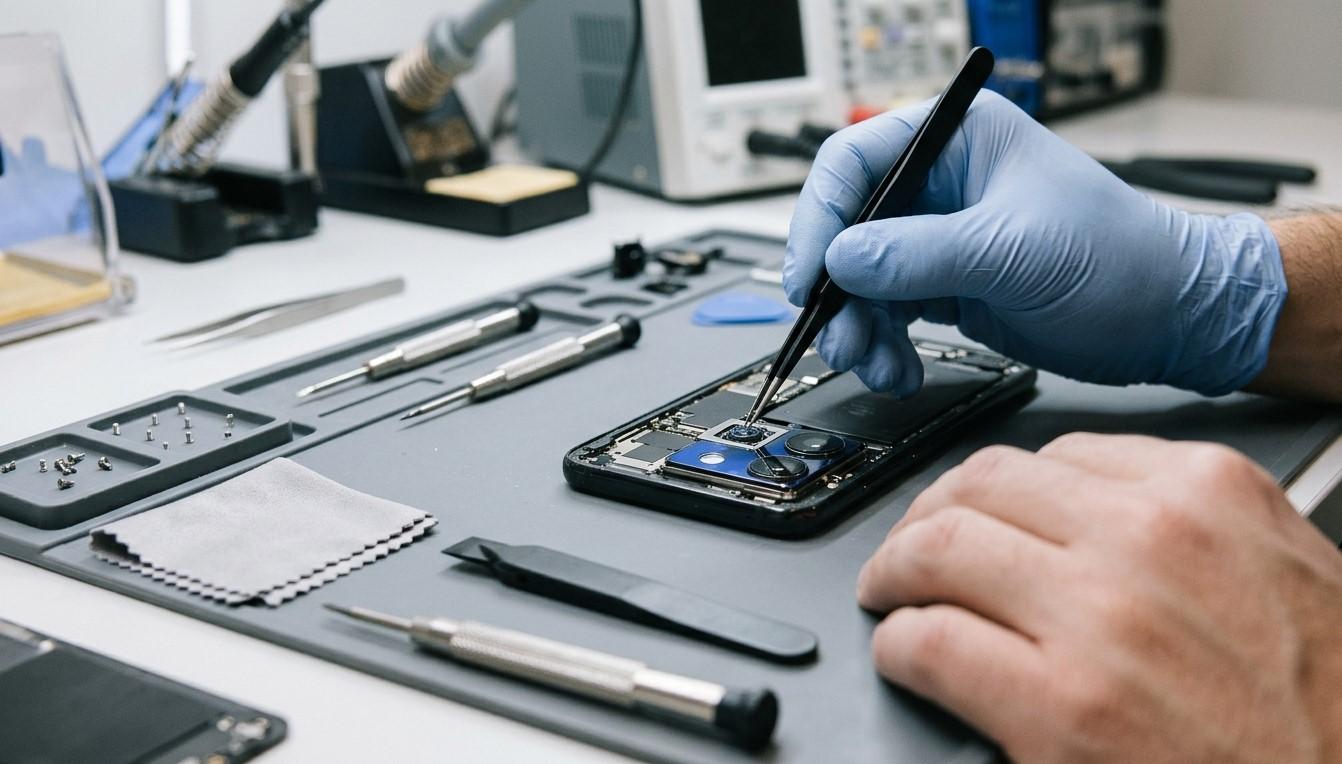

A smartphone camera helps capture important memories, record videos, and create content. However, blurry pictures and focusing problems can make it difficult to get clear results. Camera focus issues may be caused by a dirty lens, incorrect settings, software glitches, or internal hardware damage. Whether you are searching for the best mobile device repair in Douglasville or exploring mobile device repair Douglasville, Mobile Device Techs can help you understand common camera problems and practical troubleshooting solutions.
Table of Contents
-
Common Signs of Smartphone Camera Focus Problems
-
Clean the Camera Lens
-
Tap to Focus Manually
-
Restart Your Smartphone
-
Check Camera Settings
-
Update Your Phone Software
-
Remove Accessories That May Block the Lens
-
When to Seek Professional Repair
-
Frequently Asked Questions
1. Common Signs of Smartphone Camera Focus Problems
Camera focusing problems can appear in different ways. You may notice:
-
Pictures look blurry even when your hands are steady.
-
The camera struggles to focus on nearby objects.
-
The image repeatedly shifts between clear and blurry.
-
Videos appear out of focus.
-
The camera takes too long to capture a focused image.
-
One camera lens works while another produces blurry pictures.
Identifying these symptoms can help you determine whether the issue is related to settings, software, or hardware.
2. Clean the Camera Lens
Dust, fingerprints, oil, and smudges can interfere with the camera's ability to capture clear images.
How to fix it:
-
Use a clean microfiber cloth.
-
Gently wipe the camera lens.
-
Remove fingerprints and visible smudges.
-
Avoid using rough materials that could scratch the lens.
-
Check for dirt around the camera lens opening.
Cleaning the lens is one of the easiest ways to improve image clarity.
3. Tap to Focus Manually
Sometimes your smartphone camera focuses on the wrong object or background.
Open the camera application and tap the subject you want to photograph. Wait briefly for the camera to adjust its focus before taking the picture.
For close-up photography, move your phone slightly farther away if the subject is too close for the camera to focus properly.
4. Restart Your Smartphone
Temporary software glitches can affect camera performance and autofocus.
Turn off your smartphone, wait a few seconds, and restart it. Open the camera application again and test whether the focus problem has improved.
If the issue was caused by a temporary software error, restarting may restore normal performance.
5. Check Camera Settings
Incorrect camera settings may sometimes affect focusing behavior.
Try these steps:
-
Open your camera application.
-
Check whether a special shooting mode is enabled.
-
Switch back to the standard photo mode.
-
Test autofocus using different subjects.
-
Reset camera settings if the problem continues and your device provides that option.
Camera settings and menu names vary between smartphone models.
6. Update Your Phone Software
Outdated software can sometimes cause camera bugs or performance problems.
Visit your phone's settings and check for available operating system updates. Also, update the camera application if an update is available.
Before installing major updates, back up important data and follow the manufacturer's instructions.
7. Remove Accessories That May Block the Lens
Some phone cases, camera protectors, or lens covers may interfere with the camera.
Temporarily remove these accessories and test the camera again. Check whether the lens protector is scratched, dirty, or incorrectly positioned.
If image quality improves after removing an accessory, consider replacing it with a properly fitted option.
8. When to Seek Professional Repair
If your camera continues producing blurry images after troubleshooting, the problem may involve damaged autofocus components, a scratched lens, or an internal camera issue.
Professional inspection may be necessary if:
-
The phone was recently dropped.
-
The camera makes unusual clicking or buzzing sounds.
-
Autofocus repeatedly fails in different applications.
-
The camera lens appears cracked or damaged.
-
Images remain blurry despite cleaning and resetting settings.
Avoid opening your smartphone yourself unless you have the proper tools and technical experience.
Frequently Asked Questions
1. Why does my smartphone camera keep taking blurry pictures?
A dirty lens, incorrect focus, camera software problems, or damaged hardware may cause blurry pictures.
2. Can cleaning the camera lens fix focus problems?
Yes. Removing fingerprints, dust, and smudges can improve image clarity when dirt is the cause.
3. Why does my phone camera keep focusing in and out?
This may happen because of autofocus problems, poor lighting, a subject that is too close, or damaged camera components.
4. Can a software update fix smartphone camera issues?
Yes. Some updates include bug fixes that may improve camera performance and resolve focusing problems.
5. When should I get my smartphone camera professionally inspected?
Consider professional inspection if the camera remains blurry after basic troubleshooting or develops problems following a drop or physical damage.
Conclusion
A smartphone camera that will not focus properly can result from dirt, incorrect settings, software glitches, obstructed lenses, or internal hardware damage. Simple troubleshooting steps may solve the problem, but persistent issues may require professional attention. Whether you are researching the best mobile device repair in Douglasville, comparing mobile device repair Douglasville options, or looking for helpful troubleshooting advice from Mobile Device Techs, understanding these causes can help you make informed decisions about your smartphone.
Call to Action
Having trouble with your smartphone camera or another device issue? Visit Mobile Device Techs for helpful troubleshooting tips, device-care information, and practical technology guidance.


